
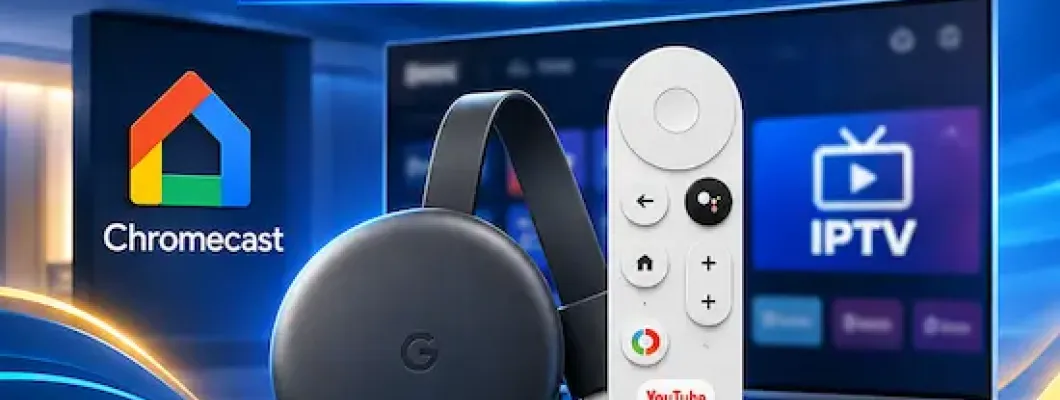
The Chromecast with Google TV (both the 4K and HD models) has rapidly become one of the most reliable and budget-friendly streaming devices for Canadian IPTV enthusiasts. Powered by a responsive Android TV operating system, native Google Play Store access, and hardware-accelerated video decoding, Chromecast transforms any standard television into an entertainment powerhouse.
However, unlike traditional cable boxes, streaming live television, sports, and video-on-demand requires pairing your high-speed M3U or Xtream Codes IPTV subscription with a dedicated media player app. In this comprehensive guide from BossTV.ca, we break down step-by-step installation and configuration instructions for the five leading IPTV players available for Chromecast: TiviMate, Sparkle TV, iMPlayer, OTT Navigator, and XCIPTV Player.
Table of Contents
- 1. Why Chromecast with Google TV is Ideal for IPTV
- 2. Essential Prerequisites & Enabling Developer Mode
- 3. TiviMate IPTV Player Setup Guide
- 4. Sparkle TV Setup Guide (Best for DVR & Modern UI)
- 5. iMPlayer Setup Guide (Best for Multi-Screen & Cloud Sync)
- 6. OTT Navigator Setup Guide (Best for Deep Customization)
- 7. XCIPTV Player Setup Guide (Best Classic Dual-Player)
- 8. Chromecast IPTV Player Comparison Matrix
- 9. How to Stop Buffering & Optimize Chromecast Performance
- 10. Frequently Asked Questions (FAQs)
1. Why Chromecast with Google TV is Ideal for IPTV
Older generation Chromecast dongles required "casting" a stream from your mobile phone or laptop. In contrast, Chromecast with Google TV is a standalone streaming box that connects directly to your television's HDMI port and comes with its own ergonomic Bluetooth remote control.
- Full Android TV Ecosystem: Direct access to the Google Play Store allows you to install top-rated media applications and receive automatic background updates.
- 4K HDR & Hardware Decoding: The 4K model supports HEVC (H.265), VP9, and AV1 video formats, ensuring fluid 60 frames-per-second playback for live NHL, NFL, soccer, and pay-per-view broadcasts without micro-stuttering.
- Auto Frame Rate (AFR) Matching: Google TV features system-level frame rate switching, eliminating jitter when streaming European sports (50Hz) and North American feeds (60Hz).
- Seamless Bluetooth Integration: Connect external soundbars, wireless headphones, or game controllers directly without input lag.
2. Essential Prerequisites & Enabling Developer Mode
Before installing any third-party media players, ensure you have your active login details from your BossTV IPTV server plan. You will typically need your Server URL (e.g., http://domain.com:port), Username, and Password (Xtream Codes API format).
How to Enable Unknown Sources on Chromecast with Google TV:
- From your Google TV home screen, click your Profile avatar in the top-right corner and select Settings (gear icon).
- Navigate to System > About.
- Scroll down to Android TV OS build and click the center remote button rapidly 7 times until a notification displays: "You are now a developer!"
- Return to the main Settings menu, select Apps > Security & Restrictions > Unknown sources.
- Install the Downloader by AFTVnews tool from the Google Play Store search bar, then toggle permissions for Downloader to Allowed.
3. TiviMate IPTV Player Setup Guide
TiviMate is widely considered the gold standard of IPTV players for Android TV and Chromecast. It delivers a familiar, polished cable/satellite Electronic Program Guide (EPG), lightning-fast channel zapping, multi-view (watch up to 9 games simultaneously), and customizable channel groups.
Step-by-Step TiviMate Configuration:
- Install TiviMate: Open the Google Play Store on your Chromecast, search for "TiviMate IPTV Player", and select Install. (Alternatively, enter Downloader code
272483to download the official APK). - Launch & Add Playlist: Open TiviMate and click Add Playlist.
- Select Xtream Codes: Choose Xtream Codes (recommended for automatic live channel and VOD category categorization).
- Enter Subscription Credentials:
- Server Address: Enter your BossTV server URL exactly as provided in your activation email (e.g.,
http://your-server.com:8080). - Username: Your assigned username.
- Password: Your assigned password.
- Check the box for Include VOD if you want movies and TV series loaded.
- Server Address: Enter your BossTV server URL exactly as provided in your activation email (e.g.,
- Complete Sync: Click Next. TiviMate will process the channel playlist and download the TV Guide (EPG). Click Done.
- Recommended TiviMate Settings for Chromecast: Navigate to Settings > Playback. Set Buffer size to Medium, enable Auto Frame Rate (AFR), and ensure Audio decoder and Video decoder are set to Hardware for optimal 4K decoding.
4. Sparkle TV Setup Guide (Best for DVR & Modern UI)
Sparkle TV is a contemporary IPTV player built specifically for Google TV. Its interface aligns seamlessly with Google's native design aesthetics. What sets Sparkle apart is its native PVR / DVR recording engine and Timeshift functionality, allowing you to pause, rewind, and schedule live recordings to network-attached storage (NAS) or a USB drive connected via a USB-C hub.
Step-by-Step Sparkle TV Configuration:
- Install Sparkle TV: Search for "Sparkle TV" in the Google Play Store on your Chromecast and click Install.
- Setup Source: Launch the app, select Setup Sources, and click Add Source.
- Select Connection Type: Select Xtream Codes (or M3U Plus if you prefer direct link loading).
- Input Account Details: Fill in your Server URL, Username, and Password. Click Next.
- Configure DVR / Timeshift (Optional): If you have an external USB flash drive or network folder, go to Settings > DVR, set your storage path, and enable Timeshift to pause and rewind live streams.
- Enjoy Live Streaming: Return to the home dashboard. Browse the grid guide or open the quick channel switcher using your Chromecast remote's D-pad.
5. iMPlayer Setup Guide (Best for Multi-Screen & Cloud Sync)
iMPlayer is designed for power viewers who manage multiple playlists or demand an advanced multi-screen layout. A standout feature of iMPlayer is its web management portal, which allows you to edit channel favorites, organize bouquets, and sync configurations across all devices in your home from any web browser.
Step-by-Step iMPlayer Configuration:
- Install iMPlayer: Open the Google Play Store on Chromecast, search for "iMPlayer TV IPTV Player", and install it. (You can also install via Downloader with code
75442). - Launch the App: Open iMPlayer and select Add Playlist from the initial startup screen.
- Select Xtream Codes or Stalker Portal: iMPlayer supports both Xtream Codes and Stalker Portal (MAC address) authentication. Select Xtream Codes.
- Enter Credentials: Enter a friendly name (e.g., BossTV 4K), your Server URL, Username, and Password.
- Multi-Screen Mode: While watching any live sports match, press the menu button on your Chromecast remote, select Multi-Screen, and add up to 4 concurrent streams from your playlist to keep track of every game simultaneously.
6. OTT Navigator Setup Guide (Best for Deep Customization)
OTT Navigator IPTV is one of the most resource-efficient and granularly customizable players available. If you have the HD version of Chromecast with Google TV or want full control over stream buffering, audio stream selection, and video codecs, OTT Navigator delivers maximum stability on modest hardware.
Step-by-Step OTT Navigator Configuration:
- Install OTT Navigator: Search for "OTT Navigator IPTV" on the Google Play Store and install the app.
- Configure Provider: Launch the app. Under Configuration / Provider, select Specify Provider.
- Select Provider Type: Choose Xtream Codes / API.
- Enter Details: Enter your BossTV Server address, Username, and Password. Click Apply.
- Playback Optimization: Go to Settings > Playback. Set Media Engine to Internal (VLC or ExoPlayer). If you experience occasional packet loss on Wi-Fi, increase the Live stream buffer to 5–7 seconds.
7. XCIPTV Player Setup Guide (Best Classic Dual-Player)
XCIPTV Player is built by OTTRUN and offers an intuitive dashboard layout featuring large, readable tiles for Live TV, Movies, Series, and EPG. It includes dual built-in media engines (ExoPlayer and VLC Player), making it exceptionally friendly for family members and seniors who want simple remote navigation.
Step-by-Step XCIPTV Configuration:
- Install XCIPTV: Search for "XCIPTV Player" in the Google Play Store on your Chromecast or install via Downloader.
- Open Login Screen: Launch the app. You will be greeted directly by the Xtream Codes login panel.
- Input Server & Login:
- Server URL: Enter your BossTV server address (including the port).
- Username: Your subscription username.
- Password: Your subscription password.
- Click Sign In: XCIPTV will sync your channel lineup and EPG timeline.
- Engine Selection Tip: If high-bitrate 4K sports streams ever encounter buffering, navigate to Settings > Player Settings inside XCIPTV and switch the default player from Built-in ExoPlayer to Built-in VLC.
8. Chromecast IPTV Player Comparison Matrix
Unsure which player best suits your household? Compare the features, interface complexity, and protocol support across all five players:
| IPTV Player | Google Play Store | Protocols | Multi-Screen | Recording / Catch-Up | Best Suited For |
|---|---|---|---|---|---|
| TiviMate | Yes (Free & Premium) | Xtream, M3U, Stalker | Up to 9 screens | Yes (SMB / LAN / Local) | Premium TV & Sports Experience |
| Sparkle TV | Yes | Xtream, M3U, Stalker | Up to 4 screens | Native DVR / Timeshift | DVR Recording & Google TV UI |
| iMPlayer | Yes | Xtream, M3U, Stalker | Up to 4 screens | Catch-Up & Cloud Sync | Multi-Device Cloud Management |
| OTT Navigator | Yes | Xtream, M3U | Picture-in-Picture | Archive & Catch-Up | Resource Efficiency & Power Users |
| XCIPTV | Yes | Xtream, M3U | Dual Screen | Built-in Catch-Up | Simple Dashboard & Senior Friendly |
9. How to Stop Buffering & Optimize Chromecast Performance
Chromecast with Google TV has an internal storage capacity of 8 GB (with approximately 4.4 GB available to user apps). To prevent freezing, audio sync delays, or buffering, apply these tested optimization guidelines:
- Connect to 5GHz Wi-Fi or Use an Ethernet Adapter: Standard 2.4GHz Wi-Fi networks suffer from household interference. Ensure your Chromecast connects to a 5GHz Wi-Fi band or use the official Google USB-C Ethernet power adapter for a direct hardwired connection. You can test your connection speed with the Canadian Internet Registration Authority (CIRA) speed test.
- Clear App Cache Regularly: Detailed EPG data and VOD posters consume device memory over time. Go to Settings > Apps > See all apps > [Your Player] > Clear Cache once a month to keep memory clear.
- Set Buffer Size to Medium: In apps like TiviMate or OTT Navigator, avoid setting your buffer size to "Very Large" on Chromecast, as large buffers can overwhelm the device's RAM. A Medium buffer (3–5 seconds) is the sweet spot for smooth live TV playback.
- Select Hardware Video Decoding: Always configure your player to use Hardware Video Decoding. Software decoding forces the Chromecast CPU to handle video rendering, leading to overheating and dropped frames during 4K sports streaming.
- Choose a High-Performance Server: No media player can overcome an overloaded server. Pair your device with high-speed Canadian infrastructure such as the Lion IPTV 4K Server on BossTV for stable, anti-freeze performance.
10. Frequently Asked Questions (FAQs)
Can I use older Chromecast dongles without the remote for IPTV?
Older generation Chromecasts (Generations 1, 2, 3, and Chromecast Ultra) lack an on-screen operating system and require casting from a mobile phone app (such as Web Video Caster). We strongly recommend upgrading to the Chromecast with Google TV so you can install native players like TiviMate or XCIPTV and navigate with a dedicated physical remote.
Which is better for Chromecast: Xtream Codes API or M3U link?
Xtream Codes API is significantly better. It automatically parses live channels, movies, and TV series into clean organized folders, updates your TV Guide (EPG) automatically, and avoids errors that occur when manually typing long M3U playlist URLs.
Does Chromecast with Google TV overheat during live sports streaming?
Chromecast dongles can run warm if hung directly against the back of a hot TV panel or powered via an underpowered TV USB port. For optimal stability, always use the included Google wall power adapter and ensure your IPTV player uses Hardware video decoding rather than Software decoding.
Can I record IPTV streams on Chromecast with Google TV?
Yes. Players like Sparkle TV and TiviMate Premium support recording. Because Chromecast has limited onboard storage, connect a USB-C hub with Power Delivery (PD) to attach an external USB 3.0 flash drive, or map your recordings to a network shared folder (SMB/NAS).
Where can I find more IPTV setup guides and remote support?
Browse our library of tutorials under BossTV IPTV Tutorials, review our Frequently Asked Questions, or contact our team directly through our BossTV Support Page for activation and configuration assistance.